
How to password protect photos on iPhone
iOS does not let you set a password on a photo album. The Hidden and Recently Deleted albums are locked with Face ID, Touch ID, or your device passcode — the same credential that unlocks the phone itself — and there is no setting anywhere in Photos to change that. To put a genuinely separate lock on specific photos, they have to live in an app that holds its own encrypted store.
What Face ID on the Hidden album actually does
Since iOS 16, the Hidden and Recently Deleted albums require authentication to open, and it is on by default. You can find the switch in Settings, under Apps, then Photos, as "Use Face ID".
The important detail is that this is the same authentication that unlocks your iPhone. It stops a stranger who picks up your locked phone. It does not stop a partner, a colleague, or a family member who watches you type your passcode, or whose face you added to Face ID when you set up the phone.
Why there is no separate album password in iOS
Apple deliberately ties Photos to the device credential rather than introducing a second password to forget. That is a defensible design choice, and it keeps the recovery story simple — but it means "password protect this album" is not a thing iOS can do, no matter which iPhone you have.
Every guide that claims otherwise is either describing the Face ID lock above, or describing a third-party app.
Locking photos behind something that is not your passcode
An encrypted vault app solves this properly. The photos are encrypted with their own key, that key is protected by the iOS Keychain, and the app decides when to lock — independently of whether the phone is unlocked.
The behaviour you want is an app that re-locks quickly. A vault that stays open for as long as the phone is unlocked has recreated the exact problem you were trying to escape.
- Encryption at rest, not just a hidden folder.
- An auto-lock timer you control — including locking the moment you leave the app.
- A way to lock instantly without navigating menus.
- Content hidden in the app switcher, so a preview does not leak what a lock is protecting.
Doing it in SecureKit
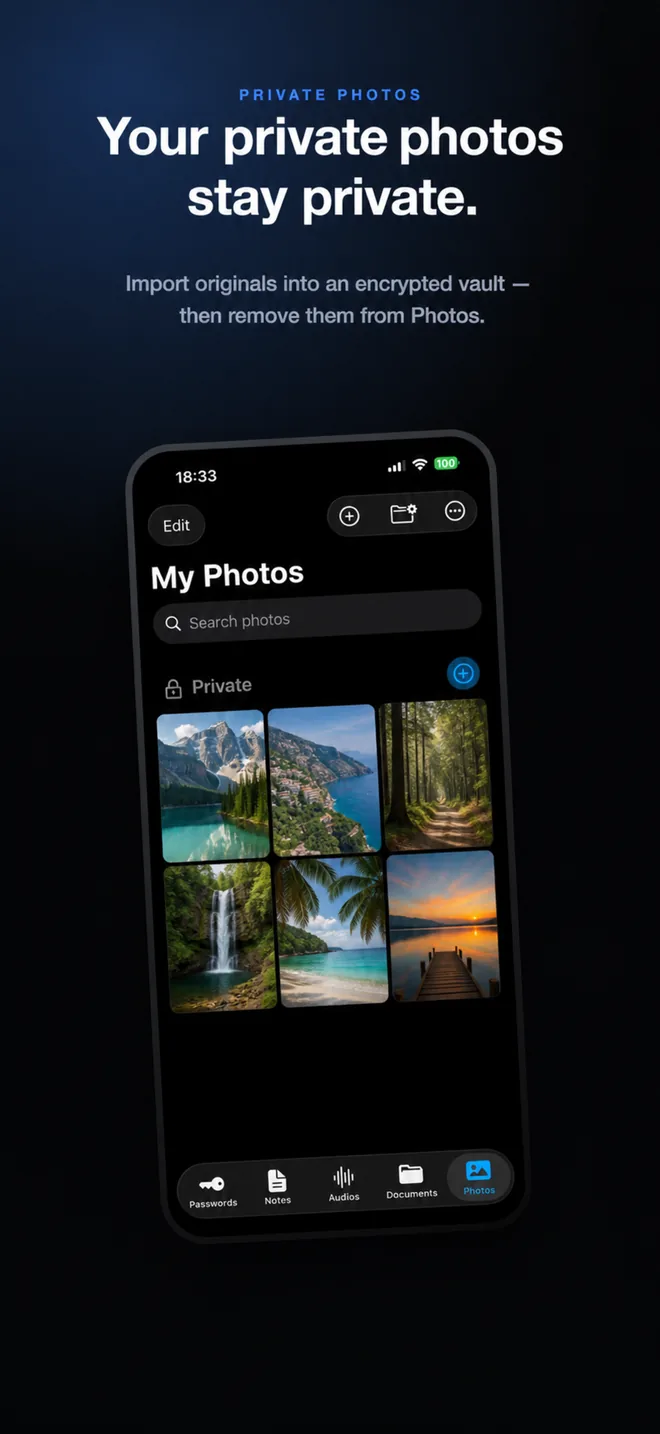
- Import photos into the SecureKit vault
They are encrypted with 256-bit AES-GCM on your device, and the vault key lives in the iOS Keychain rather than in the app.
- Set auto-lock to Immediately
In Settings, choose whether the vault locks immediately, after 30 seconds, after 1 minute, or after 5 minutes. Immediately means switching apps closes the vault behind you.
- Turn on Shake to Lock
A quick shake locks the vault without you having to find a button — useful when someone walks up mid-scroll.
- Unlock with Face ID when you come back
SecureKit uses the system authentication already built into your iPhone, so there is no extra password to remember or lose.
Frequently asked questions
Can I put a password on the Photos app itself?
Not a separate one. iOS lets you require Face ID, Touch ID, or your device passcode for the Hidden and Recently Deleted albums, but there is no setting for a distinct album password. A separate password means a separate app.
Can I lock photos with Face ID only, not the passcode?
No. iOS always allows the device passcode as a fallback when Face ID fails, because otherwise a failed scan would lock you out of your own photos permanently.
Does SecureKit need its own password?
No. SecureKit protects your encrypted vault key with the authentication already built into your iPhone, so there is no second password to remember. A separate recovery password is only used if you create an encrypted backup.