
How to hide photos on iPhone without deleting them
You do not have to delete a photo to get it out of sight. iOS has a built-in Hidden album, and it is the right first step for most people — but it is still part of your photo library, it still syncs to iCloud, and anyone who can unlock your phone can open it. If you want photos that are genuinely separate from the Photos app, you need to move them into an encrypted vault and then remove the originals.
Option 1: the built-in Hidden album
Open a photo, tap the three dots in the corner, and choose Hide. The photo moves to a Hidden album at the bottom of the Albums tab, and iOS locks that album behind Face ID by default.
This is free, instant, and reversible. It is also the weakest option, because the Hidden album is a normal album with a lock on the door. The photo is still in your library, still counted in your storage, still synced to every device signed into your iCloud account, and still visible to anything that has been granted full Photos access.
Option 2: hide photos from iCloud, not just from view
If your concern is that photos appear on a shared iPad or a family Mac, turning off iCloud Photos on that device stops the sync but leaves the originals where they are. It solves visibility on one device, not privacy across all of them.
This is worth doing alongside a vault, not instead of one.
Option 3: move photos into an encrypted vault
A photo vault stores an encrypted copy of the image outside the Photos library, in a place that has its own lock. Once the encrypted copy is safely written, you delete the original from Photos — so the photo is not hidden inside your library, it is no longer in your library at all.
This is the only one of the three that survives someone handing your unlocked phone to a friend, or scrolling past your camera roll while looking for a restaurant picture.
What to watch out for
- Import first, delete second. Never delete an original until the encrypted copy exists — a good vault enforces this order for you.
- Check Recently Deleted. iOS keeps deleted photos for 30 days, so empty that album if the point was to get the photo off the device.
- Watch for cloud backups. If your vault uploads to someone else's server, you have moved the problem rather than solved it.
- Avoid "calculator" disguise apps. A fake icon is not encryption, and several of them have shipped with the vault contents stored in plain files.
Doing it in SecureKit
- Open the Photos tab in SecureKit
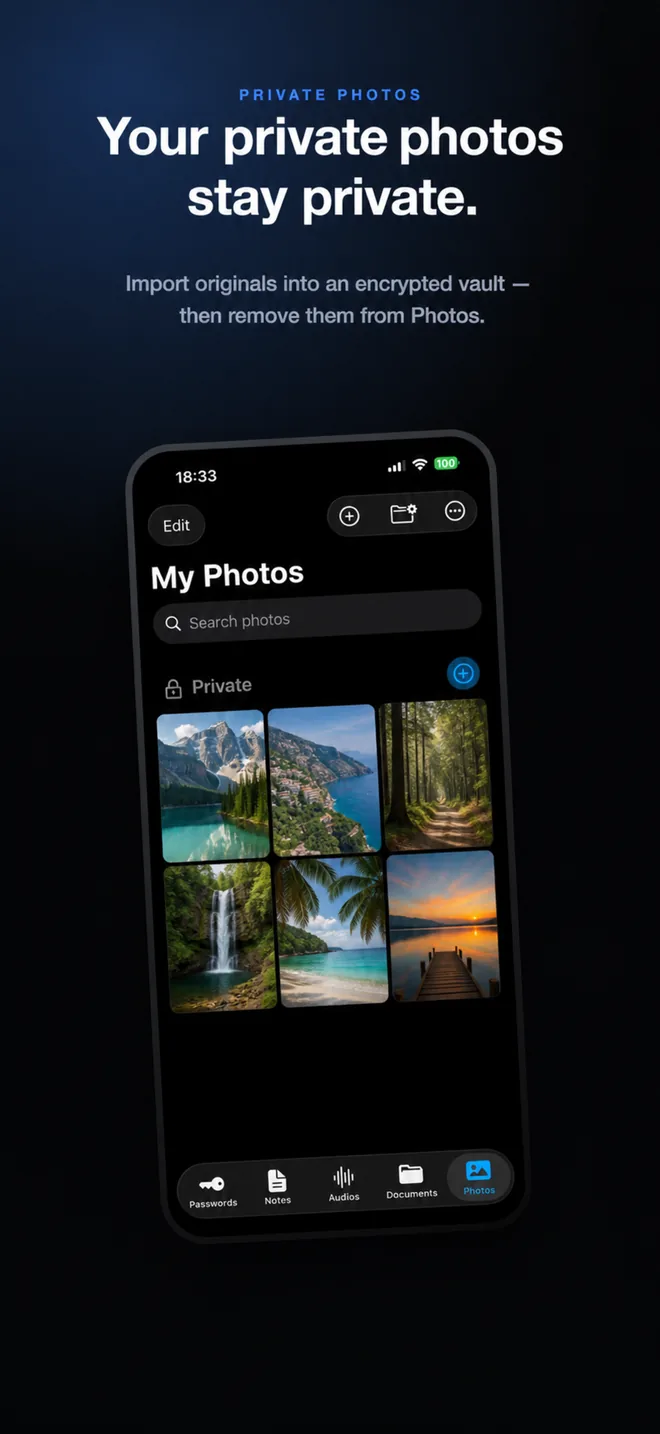
Private Photos is its own tab in the vault, next to passwords, notes, documents, and audio.
- Import the photos you want out of your camera roll
Pick them from the system picker. SecureKit writes an encrypted copy to your device with 256-bit AES-GCM before anything else happens.
- Remove the originals when the import is confirmed
Once the encrypted copies are committed, SecureKit offers to delete the originals — and iOS shows its own confirmation on top, so a failed import can never cost you a photo.
- Organize them into private groups
Create your own groups so a vault with hundreds of photos stays as easy to search as the album you came from.
Frequently asked questions
Does hiding a photo remove it from iCloud?
No. The Hidden album still syncs with iCloud Photos, so a hidden photo appears in the Hidden album on every device signed into the same account. Only removing the photo from your library takes it out of iCloud.
Can someone see my hidden photos if they know my passcode?
Yes. The Hidden album unlocks with the same Face ID or passcode that unlocks the phone, so anyone who can get into your device can get into the album. A separate vault with its own lock is what stops that.
Is a photo vault app safe to use?
It depends entirely on the app. Look for encryption at rest, a key held in the iOS Keychain, no online account, and no cloud upload. SecureKit stores your photo vault only on your device and never uploads it.