
How to back up a password manager
The standard advice — export your vault before switching phones — quietly tells you to create the single most dangerous file on your device. A CSV export is every password you own in plain text, and it usually lands in Downloads and then in a cloud backup. An encrypted archive with its own password is the version of that advice worth following.
Why CSV exports are the problem
Most password managers export to CSV because it is the only format every other manager can import. It is also completely unencrypted: opening it in any text editor shows every username and password you have.
That file then behaves like a normal file. It syncs to iCloud Drive, it sits in Downloads, it gets picked up by device backups, and deleting it does not necessarily remove it from a cloud folder's version history.
If you must use CSV to migrate between managers, do it on a device you control, import immediately, and delete the file and its Recently Deleted copy the same minute.
What a proper backup archive looks like
- Encrypted with a key derived from a password you choose, not from the app's own vault key.
- A slow key derivation — PBKDF2 with hundreds of thousands of iterations, or an equivalent — so a stolen archive is expensive to attack offline.
- A random salt per archive, so identical passwords do not produce identical files.
- Authenticated encryption, so a tampered archive fails to open rather than opening wrongly.
- Complete contents: not just passwords, but notes, documents, media, groups, and deleted items still in retention.
Why the backup password must be separate
A backup encrypted with the app's vault key is useless for the one job a backup exists to do: restoring onto a device that has never held that key. The whole point is that the new phone has an empty Keychain.
So the archive key has to come from something you carry in your head. That has an unavoidable consequence — nothing can recover it. No support ticket, no reset link. Write it down and store it physically.
Restoring without losing what is already there
A restore that overwrites is a data-loss event waiting to happen: you restore a three-month-old archive and silently lose everything added since.
The safer behaviour is additive — a restore fills in what is missing and leaves existing items alone. It means you can restore an old archive without auditing it first.
Doing it in SecureKit
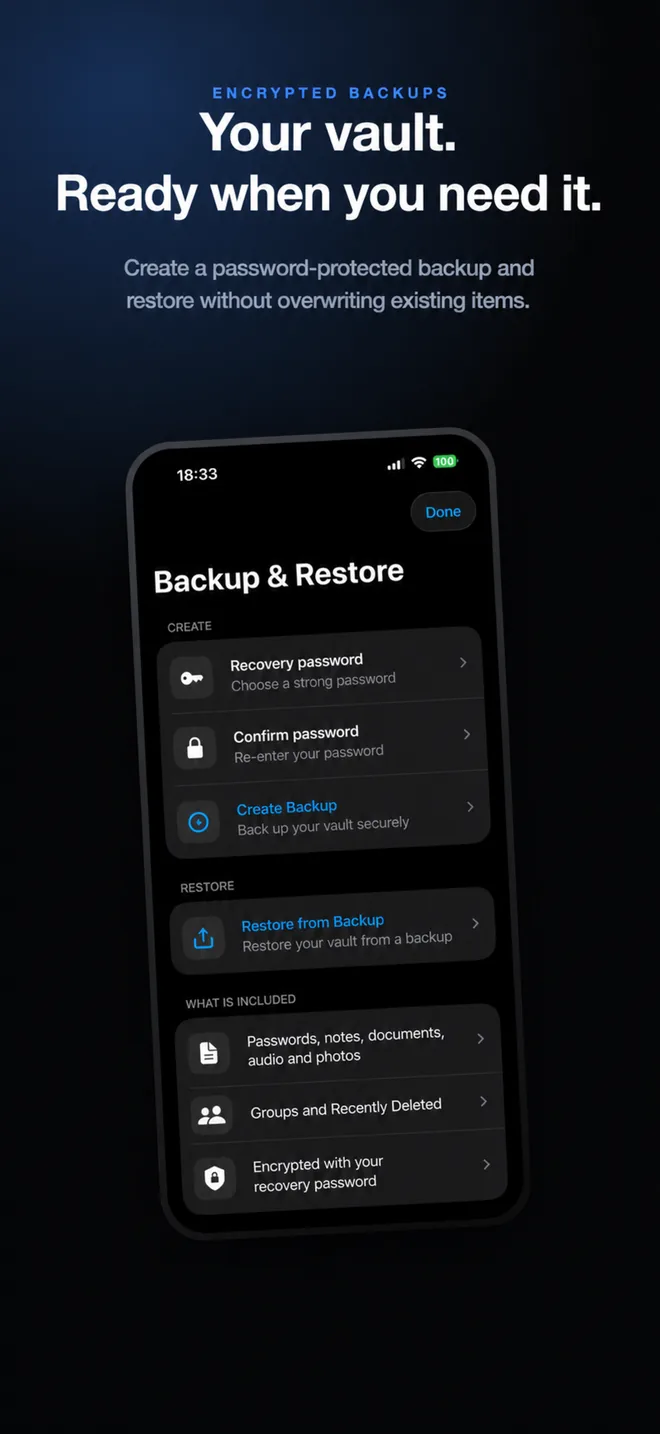
- Open Backup & Restore
Choose a recovery password of at least eight characters. SecureKit derives the archive key with PBKDF2-HMAC-SHA256 at 210,000 iterations and a fresh 32-byte salt.
- Create the archive
It includes passwords, notes, documents, audio, photos, your groups, and Recently Deleted items — encrypted with your recovery password, never with your vault key.
- Store it somewhere you control
The archive is a single encrypted file. Because it is encrypted with a password only you hold, where you keep it matters far less.
- Restore onto the new phone
Restoring adds missing content without overwriting what is already there — and restore stays available without Premium, so your data is never locked behind a purchase.
Frequently asked questions
Is it safe to export passwords to CSV?
Only briefly and deliberately. A CSV export is plain text — every password readable by anything that opens the file. Import it immediately and delete it, including from Recently Deleted.
What happens if I forget my backup password?
The archive cannot be opened. A backup password is not stored anywhere by design, because storing it would defeat the encryption. Write it down and keep it physically.
Will restoring a backup overwrite my current data?
In SecureKit, no. A restore adds items that are missing and leaves anything already on the device untouched, so restoring an older archive cannot cost you recent additions.