
Choosing an offline password manager for iPhone
An offline password manager keeps your vault on your device and never uploads it to a server. That removes an entire category of risk — you cannot be caught up in a breach of a company that never held your data — at the cost of the conveniences that come from syncing. For a single-iPhone user, that trade is usually a good one.
What counts as offline
The label gets used loosely. A genuinely offline manager has no account to create, no server to sign into, and no background sync. Your vault file lives in your device's storage and nowhere else.
Several popular managers describe themselves as offering "local vaults" while still requiring an account for licensing or recovery. That is not the same thing. The test is simple: if the app cannot function with the network permanently off, it is not offline.
What you gain
- No server-side breach can expose your vault, because no server holds it.
- No account credentials to phish, and no master password sitting in someone else's database.
- No subscription tied to continued access to your own passwords.
- Nothing to leak in a company's analytics, logs, or third-party processors.
What you give up
Sync is the obvious one. If you want the same vault on a Mac and an iPad, an offline manager will not do it for you automatically — you move an encrypted backup across yourself.
Recovery is the one people underestimate. A cloud manager can help you back into your account. An offline vault cannot, because there is no "back in" — if the device is lost and you have no backup, the data is gone. This is why an encrypted backup is not optional with a local-only vault.
Autofill integration also varies. Copying a credential and pasting it is a small tax you pay several times a day.
How offline compares to iCloud Keychain
iCloud Keychain is end-to-end encrypted and genuinely good at passwords. Where it stops is scope: it handles logins, passkeys, and Wi-Fi, but it is not built to hold a scan of your passport, a voice memo, or a photo you do not want in your camera roll.
The practical question is not which is more secure but how much of your private information falls outside what Keychain covers.
Doing it in SecureKit
- Install and enable the vault
There is no account to create. SecureKit generates your vault key on first launch and stores it in the iOS Keychain.
- Add or import your logins
Save usernames, passwords, and account notes by hand, or import from a plain text, CSV, JSON, or Markdown export from another manager.
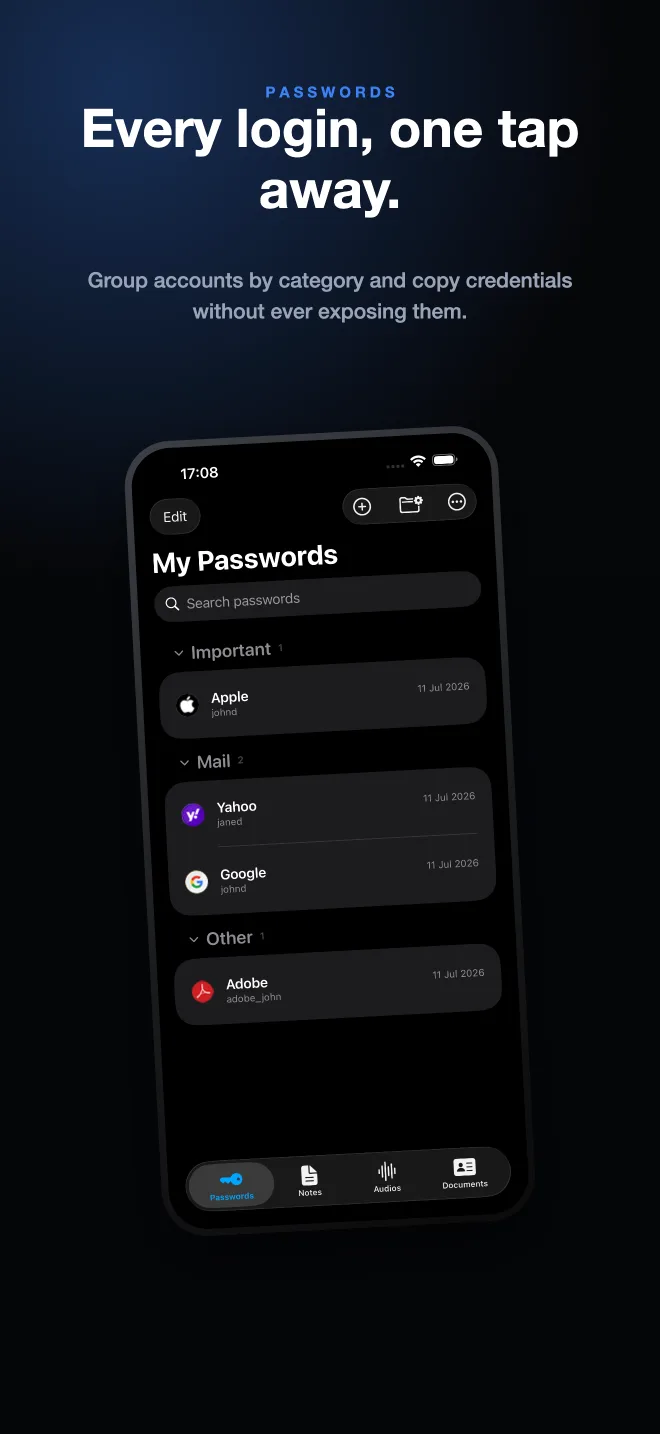
- Group accounts the way you think about them
Create custom groups — Mail, Banking, Work — and collapse the ones you rarely need so the list you scroll is short.
- Create an encrypted backup
With a local-only vault this is the recovery plan. SecureKit produces a password-protected archive that is never encrypted with your vault key, so it can be restored on a device that has never seen your Keychain.
Frequently asked questions
Is an offline password manager safer than a cloud one?
It removes server-side risk entirely, which is a real advantage. It also removes server-side recovery, so a lost device with no backup means lost passwords. Offline is safer against breaches and riskier against your own mistakes.
Can I use an offline password manager on more than one device?
Only by moving an encrypted backup yourself. There is no automatic sync, because syncing is exactly the thing an offline manager is designed not to do.
Does SecureKit work without an internet connection?
Yes. The vault, passwords, notes, documents, audio, photos, and authenticator codes all work with no network at all. There is no SecureKit account and no cloud vault.