
Do authenticator apps work offline?
Yes — and not as a fallback. A standard authenticator app never needs the internet to produce a code, because it is not fetching anything. It is doing arithmetic on two values it already has: a secret shared with the service when you set up 2FA, and the current time.
How the code is actually generated
The open standard is TOTP, defined in RFC 6238. When you scan a 2FA QR code, the service hands your app a secret key. That secret never moves again.
To produce a code, the app takes the current Unix time, divides it into 30-second steps, and computes an HMAC of that step counter using the shared secret. It truncates the result to six digits. The server does the identical calculation with the identical secret and time, gets the identical digits, and lets you in.
Nothing in that sequence involves a network request. Both sides compute the same answer independently, which is precisely why it works on a plane.
Why push-based 2FA is different
Some corporate systems send a push notification asking you to approve a sign-in. That is not TOTP, and it does need a connection — the notification has to reach your phone.
If your app shows a rotating six-digit code with a countdown, it is TOTP and it works offline. If it shows an Approve or Deny prompt, it does not.
The one thing that can break offline codes
Because TOTP depends on time, a device clock that has drifted by more than about thirty seconds will produce codes the server rejects. This is the cause of nearly every "my authenticator stopped working" report.
The fix is to let iOS set the time automatically, in Settings under General and then Date & Time. Nothing needs to be re-scanned.
Where to keep the codes
The security argument for keeping 2FA codes separate from passwords is that a single compromised vault should not hand over both factors. The practical argument for keeping them together is that people who find 2FA annoying turn it off.
A reasonable middle ground: if your vault is local-only and never uploaded, the "single point of compromise" is a device someone has to physically hold and unlock — a very different threat from a breached server.
Doing it in SecureKit
- Open the Codes section in the Passwords tab
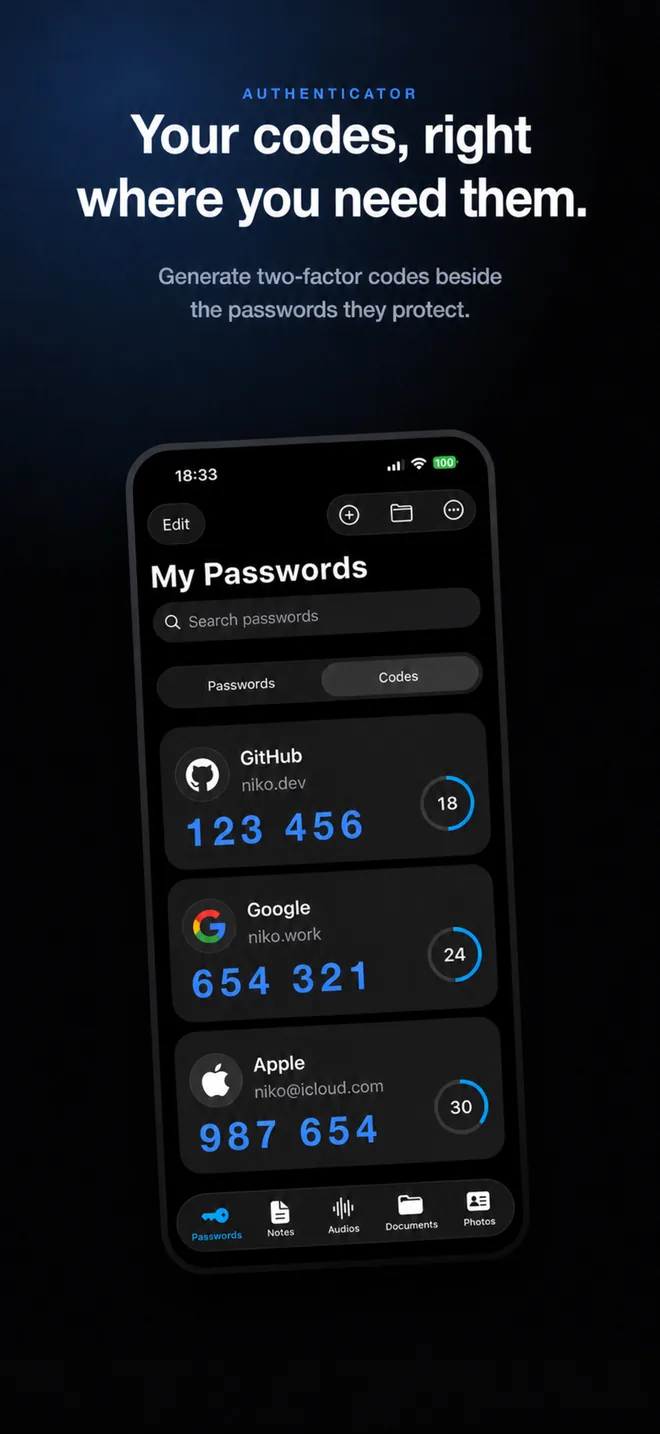
SecureKit keeps authenticator codes beside the passwords they protect, in a dedicated Codes section.
- Scan the QR code the service shows you
Or enter the secret and details by hand. SecureKit accepts SHA-1, SHA-256, and SHA-512, and the digit and period settings services use.
- Read the code from the countdown ring
Each entry shows the current six-digit code and how many seconds remain before it rotates. Tap to copy.
- Back it up before you change phones
An encrypted SecureKit backup includes your codes, which matters — losing an authenticator with no backup means going through account recovery with every service.
Frequently asked questions
Do authenticator codes work in airplane mode?
Yes. TOTP codes are computed from a stored secret and the current time, so they work with no signal, no Wi-Fi, and no SIM.
Why is my authenticator code being rejected?
Almost always a clock problem. TOTP depends on your device time matching the server's, so turn on Set Automatically in Settings under General, Date & Time.
Is it safe to keep 2FA codes in the same app as my passwords?
It concentrates both factors in one place, which is a real trade-off. It is much safer when the vault is encrypted, local-only, and never uploaded, since an attacker needs your physical unlocked device rather than a server breach.