
How to lock notes on iPhone
Apple Notes can lock individual notes, and since iOS 16 it can use your iPhone passcode instead of a separate notes password. Open the note, tap the three dots, and choose Lock. That covers most needs — but there are three specific cases where a locked note is not enough, and it is worth knowing which side of the line you are on.
Locking a note with Face ID
- Open the note you want to lock.
- Tap the three dots in the top-right corner.
- Choose Lock.
- If prompted, pick whether to use your iPhone passcode or a separate password.
- Tap the lock icon in the toolbar to close the note.
Once locked, the note's title still appears in the list — only the body is hidden. That is worth remembering when naming a note.
Using a different password than your phone passcode
Go to Settings, then Apps, then Notes, then Password. You can set a custom password per account, which is what you want if the point is to keep a note private from someone who knows your passcode.
The catch is real: Apple cannot reset a custom notes password. Forget it and the locked notes are unreadable, permanently. Choose it deliberately and write it down somewhere that is not your phone.
What Apple Notes encryption covers
Locked notes are end-to-end encrypted, and with Advanced Data Protection enabled all your notes are. That is a strong position and better than most note apps.
The gaps are structural rather than cryptographic. Attachments in a locked note are covered, but the note lives in the same app and the same list as everything else, and locking is per note — so protection depends on you remembering to lock each one.
When to use a vault instead
- When everything in a category is sensitive — bank details, insurance, recovery codes — and per-note locking is friction you will eventually skip.
- When you want a separate lock that is not your phone passcode, without the permanent-lockout risk of a forgettable notes password.
- When notes need to sit beside the passwords, documents, and photos they relate to.
- When you do not want the content in iCloud at all.
Doing it in SecureKit
- Write or import the note
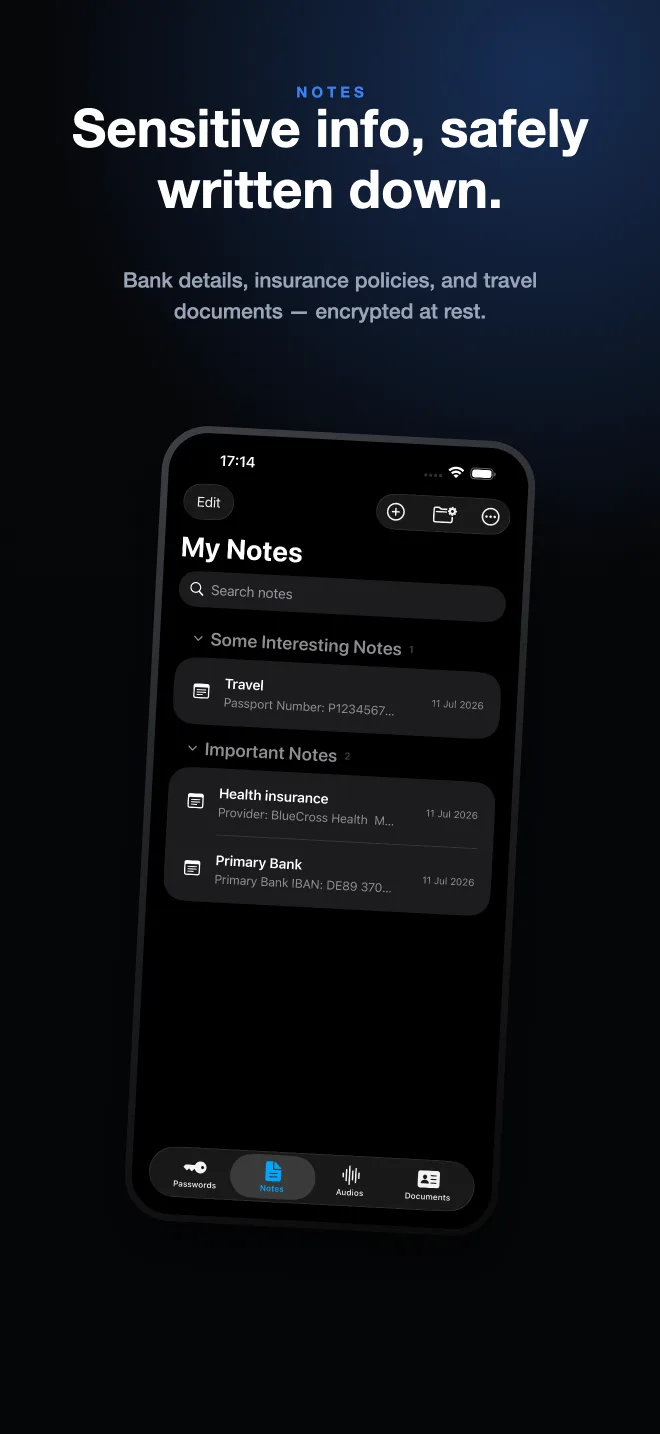
Bank details, insurance policies, travel plans, recovery codes — encrypted at rest with 256-bit AES-GCM.
- Scan printed text into a note
SecureKit recognises text from a scanned page and saves it as a private note, so a letter becomes searchable text rather than an image.
- Group notes so the sensitive ones are together
Custom groups and collapsible sections keep the list short without leaving anything unlocked.
- Let the whole vault lock at once
Nothing is protected per item. Auto-lock closes everything, and Shake to Lock does it instantly.
Frequently asked questions
Are Apple Notes encrypted?
Locked notes are end-to-end encrypted. Unlocked notes are encrypted in transit and on Apple's servers, and become end-to-end encrypted if you turn on Advanced Data Protection.
Can I lock notes with a password that is not my passcode?
Yes, in Settings under Apps, Notes, Password. Be careful: Apple cannot reset a custom notes password, and forgetting it makes those notes permanently unreadable.
Why can I still see the title of a locked note?
Apple Notes hides the body but keeps the title visible in the list so you can find it. Anything sensitive should not go in the title.